

Find literal text and replace every matching occurrence with another string. Follow the exact input and settings below to reproduce this example. Open Find Replace Text.
Prepare the source text
Open Find Replace Text and choose Write or paste text, or upload a supported UTF-8 text file. The upload opens the editor; it does not run the tool. This example uses the exact source shown in the comparison.
Maximum input and result: 1 MB of UTF-8 text, with a 1,048,576-character input ceiling. Expanding transformations must also fit the result limit.
Use the exact example input
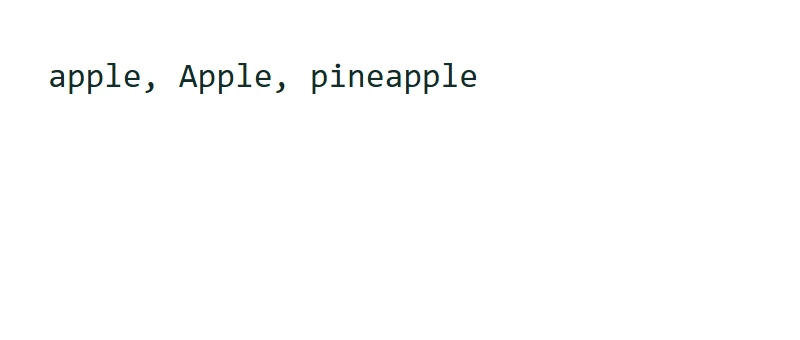
apple, Apple, pineapple
This text operation runs in your browser; its source and result are not sent for conversion. A draft may be kept in this browser tab when session storage is available. Clear removes the current draft; download important work before closing the tab.
Choose the settings
For the recorded example, use these settings: Find: apple; Replace with: orange; Match case: Off; Whole words only: Off.
Find is treated as a literal string, so punctuation such as periods or brackets does not act as a regular expression. Matching ignores case unless Match case is enabled. Whole words only checks that a match is not directly next to a letter, number or underscore. Replacement text is inserted literally; an empty replacement removes the matches.
The example in this guide
Verified in the i2TEXT browser workflow on November 11, 2026.
- Input
- example.txt
- Output
- find-replace-text.txt
- Saved result
- 26 bytes
Apply and inspect the result
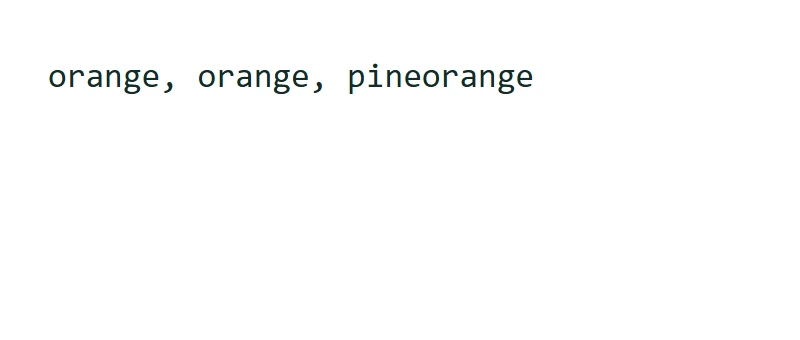
Select Find Replace Text when the input and settings are ready. In the saved example, the result begins: "orange, orange, pineorange".
Check a small sample before replacing short strings. Changes can affect names, code, URLs or text inside markup.
Result overview shows Replacements and the input-to-result character totals. The replacement count follows the literal search, case and whole-word settings; it is not estimated from the change in text length.
Result overview distinguishes changed, unchanged and empty results. An unchanged result means the selected operation did not alter the text; an empty result can be the expected outcome of removal or extraction.
Save the version you reviewed
Review the current result, then use the download icon to save a TXT file. The actual download in this example is named find-replace-text.txt. Copy and download use the current result, so make any final wording changes before saving. Continue to can carry the result into a compatible next tool, where you review it before running another operation.
Editing the result hides the calculated details until you run the tool again. Copy and TXT download use the edited text; return to the source and reapply the tool to refresh the report.
example.txtfind-replace-text.txt
Common questions
Which settings produced this example?
Find: apple; Replace with: orange; Match case: Off; Whole words only: Off.
What should I check before using the result?
Check a small sample before replacing short strings. Changes can affect names, code, URLs or text inside markup.
Where is this text processed?
This text operation runs in your browser; its source and result are not sent for conversion. A draft may be kept in this browser tab when session storage is available. Clear removes the current draft; download important work before closing the tab.
Try Find Replace Text with your own text.
Use your own source and review the result before sharing.