

Crop, adjust and annotate an image in the browser, then save a new picture in a supported format. Follow the real example below, then adapt it to your own source. Open Photo Editor.
Open the source image
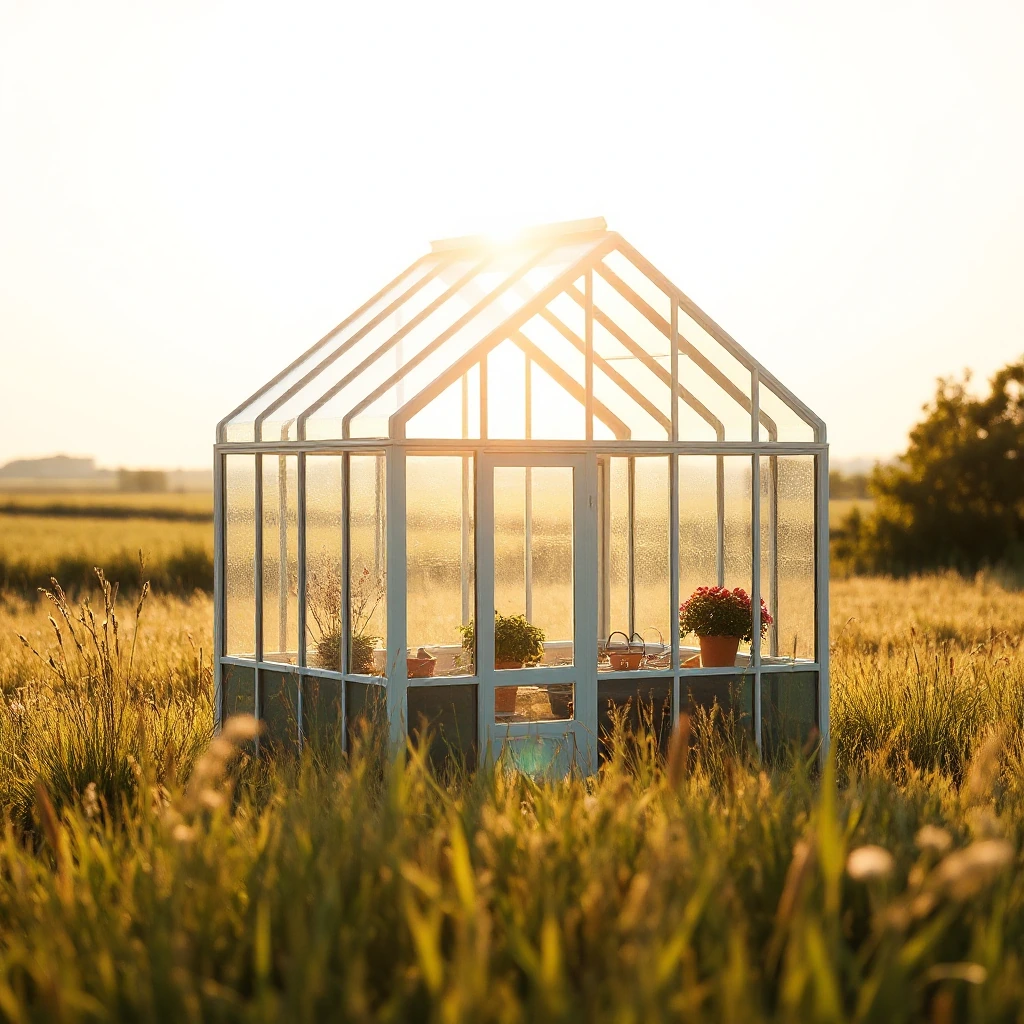
Open Photo Editor and upload the source image shown in the comparison. The downloaded result is saved separately from that original.
Maximum input size: 25 MB. One image per run. Browser memory and image dimensions can limit complex edits.
Editing and final export use the browser canvas. Preview preparation may use the server when browser decoding is unavailable. The result is downloaded as a new file; the original on your device is not overwritten.
Make the visible edit
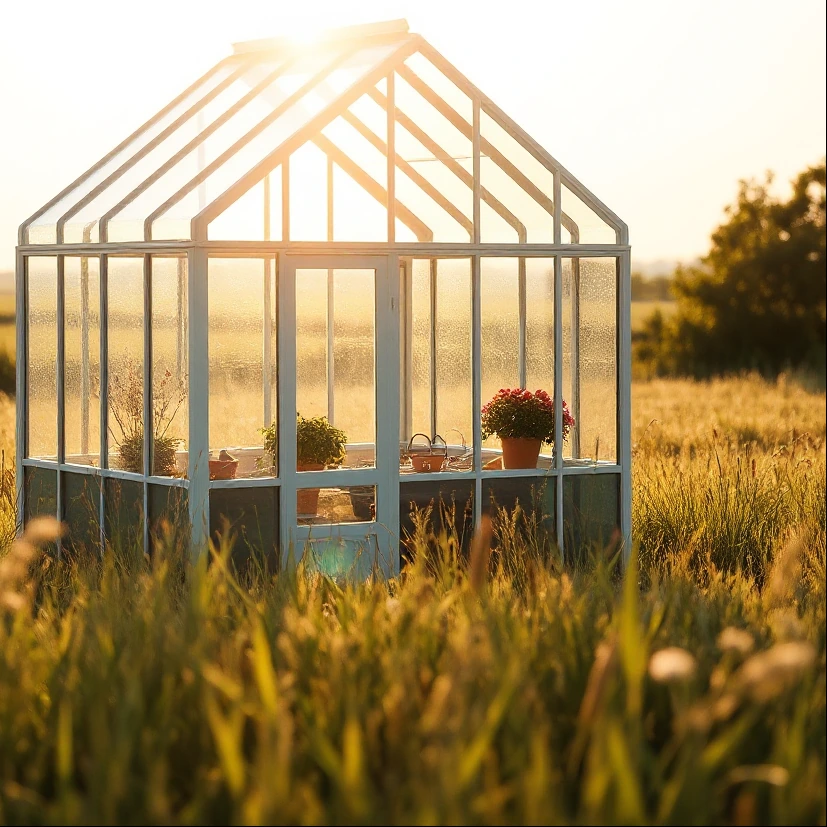
Dragged the top-left crop corner inward; exported a tighter 827 x 827 square crop from the 1024 x 1024 input.
Explore the editor controls to change the image appearance, then compare the result with the version you started from. Undo and redo help you refine a change. These are image editing controls rather than a guarantee that lost detail or a blurred source can be recovered.
The example in this guide
Verified in the i2TEXT browser workflow on November 11, 2026.
- Input
- greenhouse.png
- Output
- i2text-greenhouse.png
- Saved result
- 1374254 bytes
Review the composition
Place text or other supported elements on the canvas and arrange them with their selection controls. The Image watermark action can add another image. Check placement, contrast and readability before saving the composition.
Check the finished image at its intended display size. The before and after comparison shows the actual source and the downloaded edit from this session.
Export a finished picture
Select PNG for the recorded example, then Start. Download i2text-greenhouse.png from the result page and inspect the saved image.
The export combines visible layers into one raster image. Resizing upward does not recreate missing detail, and repeated lossy exports can reduce quality.
greenhouse.pngi2text-greenhouse.png
Common questions
Can I reopen the exported file with editable layers?
The export combines visible layers into one raster image. Resizing upward does not recreate missing detail, and repeated lossy exports can reduce quality.
Which input and output formats are supported?
One JPG, JPEG, PNG, WebP or HEIC image. Output: PNG, JPG or WebP image.
Does the export change my original file?
Editing and final export use the browser canvas. Preview preparation may use the server when browser decoding is unavailable. The result is downloaded as a new file; the original on your device is not overwritten.
Try Photo Editor with your own source.
Use your own source and review the result before sharing.